Batch Add Guest Messages - Batch Edit Tab
A date range calendar is displayed in the Batch Edit tab. Users can select the preferred date range for retrieving reservations. The dates prior to the current property date cannot be selected. When users select a date range and click Go, reservations in the following statuses will be retrieved and displayed:
-
Arriving
-
In-House
-
Departing
When the Batch Add Guest Message feature setting is enabled, users can add a guest message to multiple reservations from the Batch Edit tab by selecting the preferred reservations and clicking on More ➜ Add Guest Message. When clicked, the Guest Message pop-up screen appears that displays the following fields:
|
Field |
Description |
|---|---|
|
From |
Sender of the message. |
|
Contact |
Contact number of the recipient. |
|
Subject |
The subject line of the message. |
|
Message |
The message for the recipient. |
When users click Save, they will be naviagated to the Confirmation pop-up screen where users must confirm if the guest message must be added to the selected reservations.
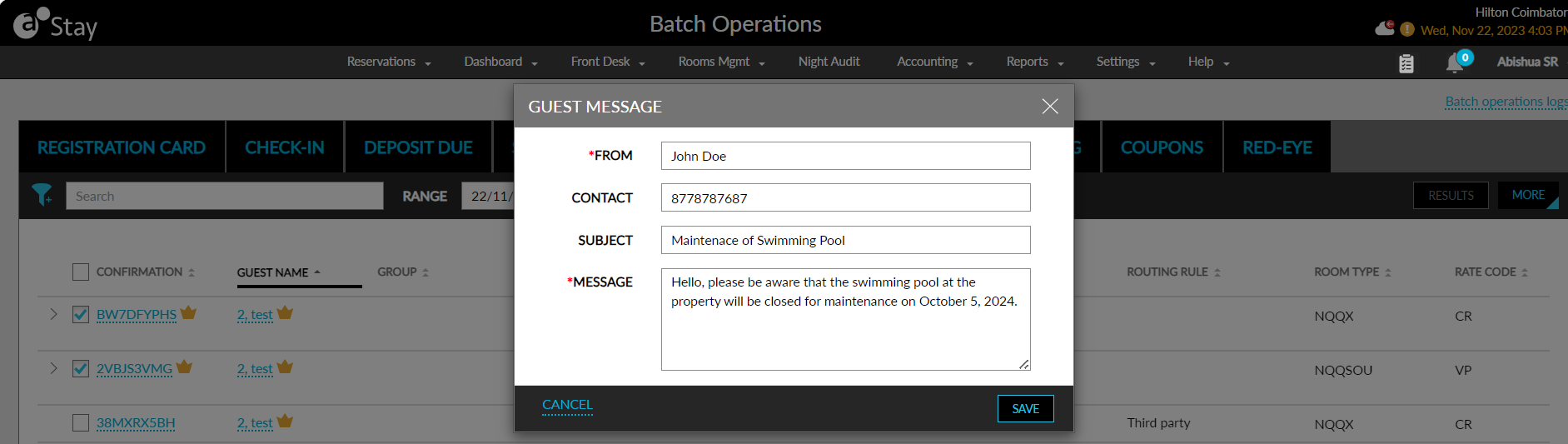
When users click Yes, the message will be added to the reservations and the following message will be displayed as a banner: Bulk Addition Of Guest Message Is In Progress. Click Here For The Status.
When users click the Click Here hyperlink, the Bulk Update Process pop-up screen appears that displays the count of the reservations processed. Once the reservations are processed, the following message will be displayed as a banner in the Batch Operations screen: Bulk Addition Of Guest Message Is Completed. Click Here For Details. X Success, Y Failed & Z Warning.
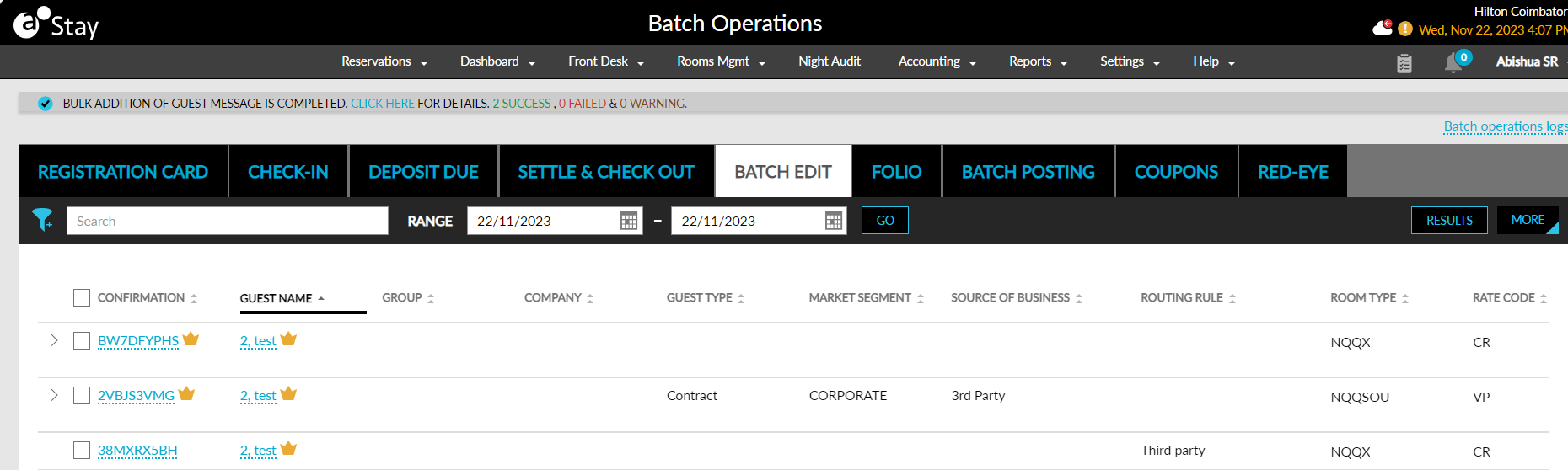
On completion of the bulk update, when users click the Click Here hyperlink, the Results pop-up screen appears that displays the count of the reservations processed in the following headers in the Guest Message tab.
-
Success: Count of reservations for which the guest message was added successfully.
-
Failure: Count of reservations for which the guest message was not added successfully.
-
Warning: Count of reservations with warning.
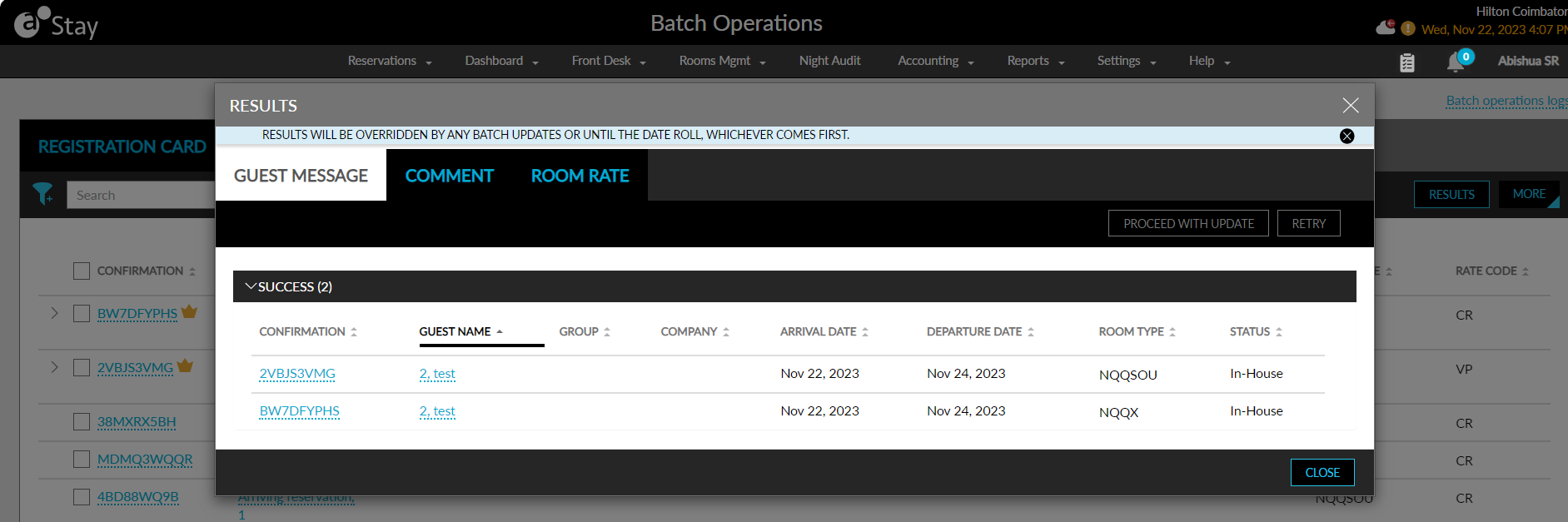
The reservation details are displayed in each section in the following columns:
|
Field |
Description |
|---|---|
|
Confirmation |
Confirmation number of the reservation displayed as a hyperlink. When clicked, users will be navigated to the reservation. |
|
Guest Name |
The guest name associated with the reservation displayed as a hyperlink. When clicked, users will be navigated to the guest profile. |
|
Group |
The group name associated with the reservation displayed as a hyperlink if applicable. This column will be left blank when the reservation is not associated with a group. |
|
Company |
The company name associated with the reservation displayed as a hyperlink if applicable. This column will be left blank when the reservation is not associated with a company. |
|
Arrival Date |
The arrival date of the reservation. |
|
Departure Date |
The departure date of the reservation. |
|
Room Type |
The code of the room type associated with the reservation. |
|
Status |
The status of the reservation. |
All columns can be sorted. When users add a duplicate guest message to a reservation with an existing subject but a different message, the message will not be added to the reservation. The reservation will be displayed in the Warning section with the reason for failure displayed as follows:
Subject already exists.
Message “XX”
When users add a duplicate guest message to a reservation with an existing subject and message, the message will not be added to the reservation. The reservation will be displayed in the Failed section with the reason for failure displayed as follows: A Message with the same subject already exists.
Override and Add Guest Messages
For reservations with warnings for guest messages, users with the Stay_OverrideGuestMessage permission can override the warning and add the guest message to the reservations by selecting the reservations displayed in the Warning section and clicking on the Proceed with Update button. When clicked, the Override pop-up screen appears that prompts users to enter their credentials.
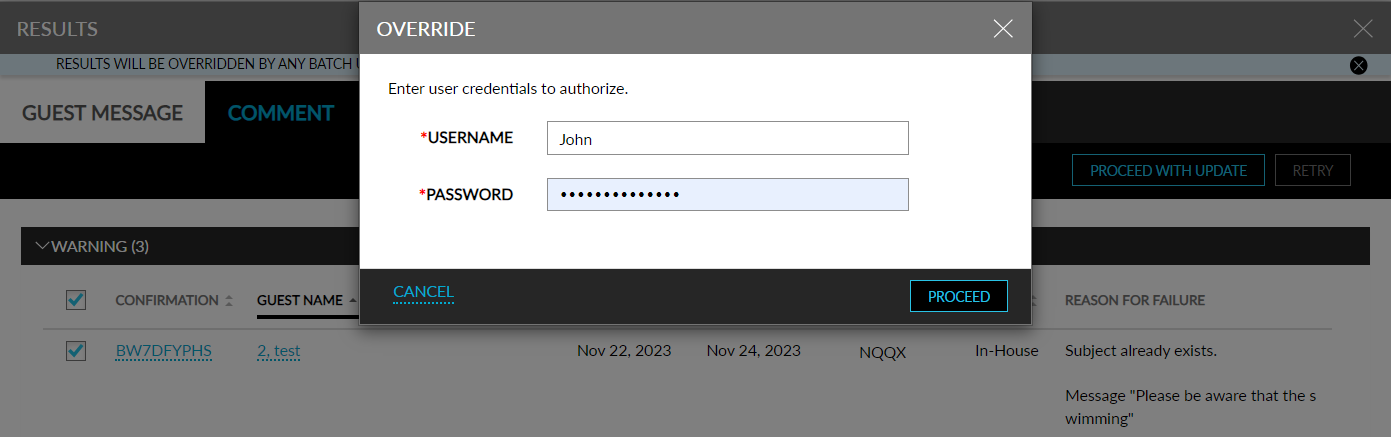
When users enter their credentials and click Proceed, the credentials of the user are validated. If the user is assigned the permission, the warning will be overridden, and the guest message will be added to the reservations successfully. When the user is not assigned the permission, the message, User Does Not Have the Permission to Override Guest Message, will be displayed. When the credentials entered are invalid, the message, Invalid Credentials, will be displayed.